Configuring Your Company Profile
Getting Started · Last updated August 16, 2026
Every field on the Settings → Company tab — what it controls and how to change it.
Your company profile is the identity Reelow puts in front of your customers — it appears on estimates, contracts, and lead forms, and your company address anchors every travel-distance calculation. Complete it before you send your first estimate.
Before you begin
- You need an owner or admin account — movers and most staff roles cannot change company settings.
- Have your MC license number and insurance policy number handy if you want them shown on documents.
- For the logo: a PNG or JPG up to 5 MB, ideally square and at least 200×200 pixels.
Open the Company tab
- Click Settings at the bottom of the sidebar.
- Select the Company tab. You'll see the Company Information card: "This information is used for quotes, contracts, and travel distance calculations."
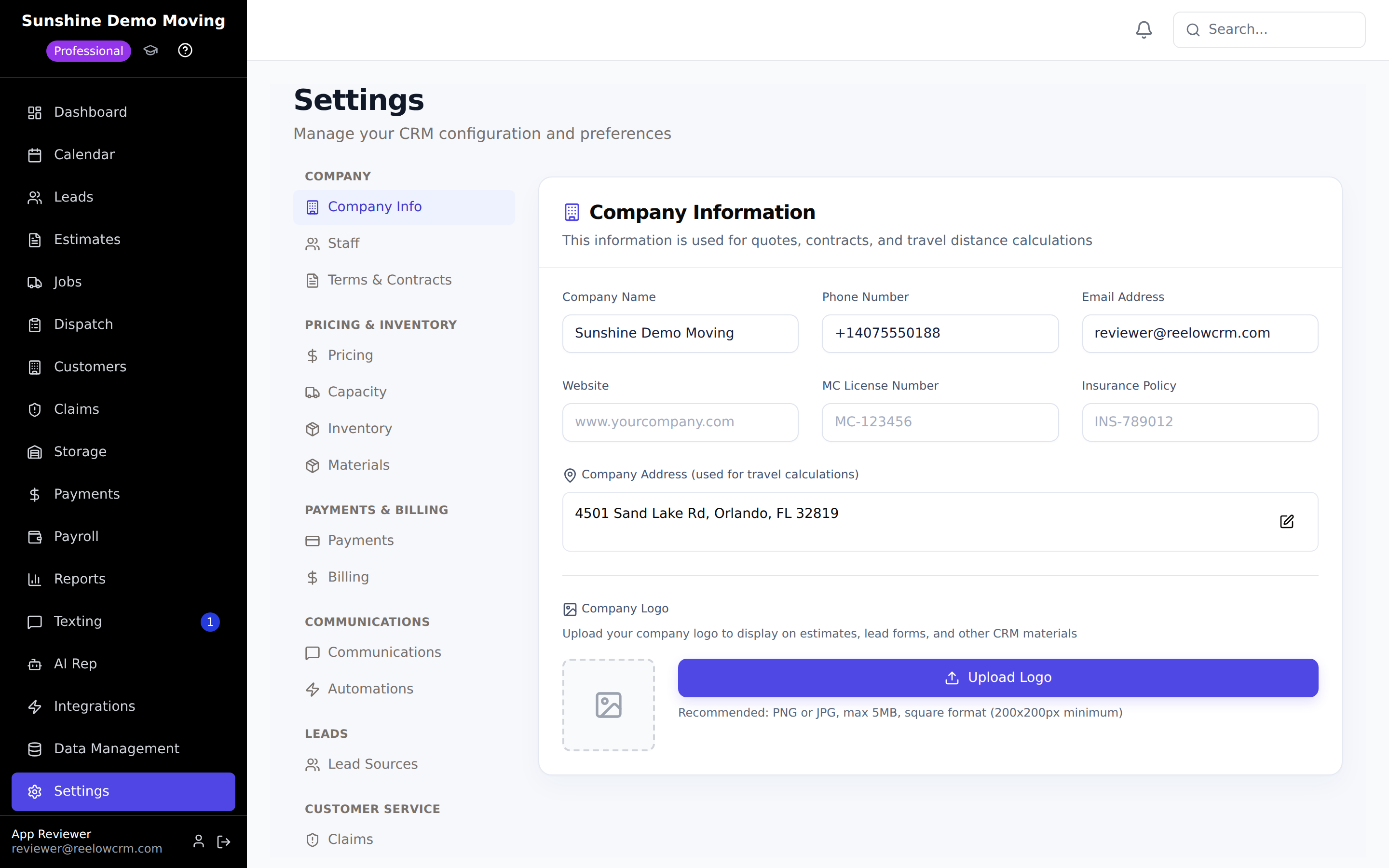
The fields and what they control
- Company Name — shown on every estimate, contract, and customer-facing page.
- Phone Number — the contact number printed on your documents.
- Email Address — the contact email customers see.
- Website — displayed on customer-facing materials.
- MC License Number — your motor carrier number, shown on estimates and contracts where customers expect to verify a mover's credentials.
- Insurance Policy — your policy reference, also available to documents.
- Company Address — start typing and pick the suggested address. This is the origin point for travel-distance calculations, so an accurate address directly affects travel charges on your quotes. It saves automatically when selected.
Warning: If you change your company address, existing leads keep the distances calculated earlier. Use Recalculate Lead Distances under Settings → Pricing to refresh them.
Upload your logo
- Scroll to Company Logo on the Company tab.
- Click Upload Logo (or Change Logo if one exists) and pick your PNG or JPG. Max 5 MB; square, 200×200 px or larger looks best.
- Wait for the "Logo Uploaded" confirmation. The logo now appears on estimates, lead forms, and other CRM materials. To remove it, click the × on the logo preview.
What happens next
Changes save to your company immediately and appear on the next estimate you create. From here, most companies go straight to Settings → Pricing to configure hourly rates, travel settings, and time adjustments — that's what turns your inventories into accurate quotes.
Troubleshooting
- Logo upload fails — check the file is under 5 MB and is a PNG or JPG, then try again.
- Address won't save — select an address from the suggestions rather than typing free-form; the selection is what triggers the save.
- Travel charges look wrong on quotes — verify the Company Address here first, then review travel settings under Settings → Pricing.
Was this article helpful? Let us know from this page in the app, or contact support if you're stuck.
Frequently asked questions
Where does my logo actually show up?
On estimates, customer lead forms, and other customer-facing CRM materials. It replaces the placeholder wherever your company identity is displayed.
Do I have to enter an MC license number?
It's optional, but recommended — customers increasingly verify movers' credentials, and having it on your estimate builds trust.
Why does Reelow need my company address?
It's the origin for travel-distance calculations, which feed travel charges on estimates. It also appears on documents.
Who can edit the company profile?
Owners and admins. Staff roles like consultants, dispatchers, and movers don't have access to company settings.
Related articles
Previous: Understanding the Reelow CRM Workflow
Still need help?
Contact the Reelow team, or call our 24/7 AI assistant at (737) 218-1003.