Understanding the Reelow CRM Workflow
Getting Started · Last updated August 16, 2026
The full lifecycle of a move in Reelow — from new lead to completed job and final payment.
Everything in Reelow is organized around the real lifecycle of a move. Understanding this flow makes the whole platform click — every screen exists to move a customer one step further along it:
Lead → Move Details → Inventory → Estimate → Customer Approval & Deposit → Booked Move → Scheduling & Dispatch → Completion & Final Payment
1. A lead comes in
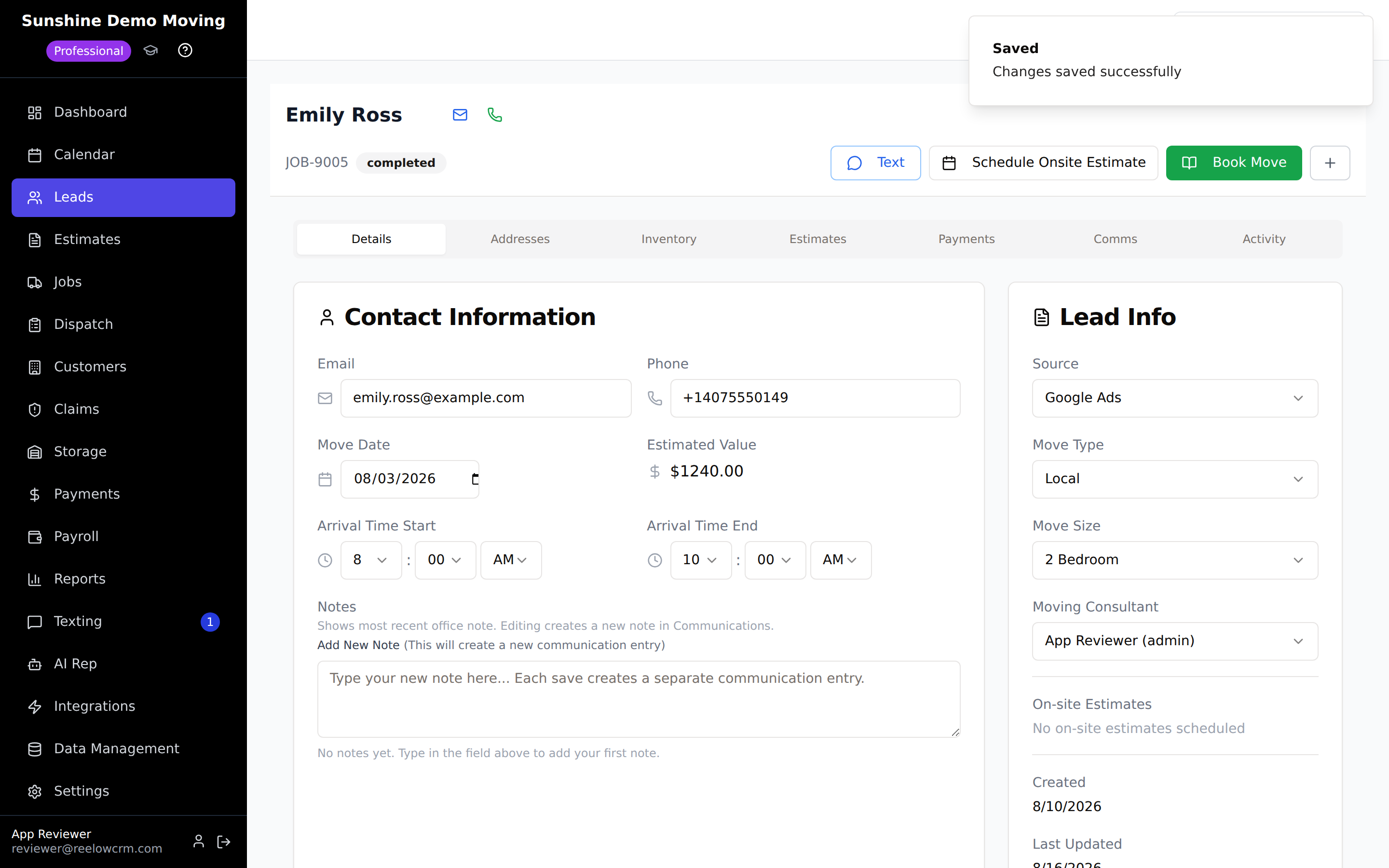
A lead is any potential customer. Leads enter Reelow when your team creates one on the Leads screen, when a connected lead source sends one through Integrations, or when the AI Sales Rep answers a call and captures the caller's information automatically. Every lead gets a profile that will hold everything about the move from here on.
2. Move details and inventory
On the lead profile you record where the customer is moving from and to, the move date, and access conditions. Then you build the inventory — the room-by-room list of what's being moved. The inventory drives the size of the move, which drives crew size, truck size, and time — so an accurate inventory is what makes the estimate accurate. On AI Sales Rep calls, the AI collects these details and builds the inventory during the conversation.
3. The estimate
From the lead profile you create a quote: Reelow combines the move type, addresses, crew and truck size, your hourly rates, travel settings, and any additional charges into a professional estimate with your logo and terms. You set the deposit amount on the quote. When it's ready, use Send Estimate Link to deliver a secure link by text or email where the customer can view and sign.
4. Customer approval and deposit
The customer opens the link, reviews the estimate, e-signs it, and pays the deposit online (processed by Stripe). You can also send a standalone deposit link by SMS. The signature and payment are recorded on the lead automatically.
5. The move is booked
Scheduling the move flips the lead's status to booked — you'll see "Move Booked Successfully" — and Reelow creates a job for it. The job appears on the Calendar and in Jobs, carrying over everything from the lead.
6. Scheduling and dispatch
In Jobs and Dispatch, you set the Scheduled Date, assign movers and trucks, and add Dispatch Notes for the crew. The Calendar shows every day's load so you can balance multiple moves on the same day. Crews see their assignments in My Schedule and in the Reelow mobile app.
7. Completion and final payment
After the move, open the job and use Finalize Bill to produce the final job summary — actual hours, materials, and adjustments against the deposit already paid. Finalizing sends the final invoice, records the payment, and marks the job completed. The lead's status becomes completed, and the customer joins your Customers list for future repeat business.
Where each stage lives
- Lead, move details, inventory, estimate, deposit — the lead profile on the Leads screen.
- Booked moves — Jobs, Dispatch, and the Calendar.
- Money — Payments (deposits, invoices, balances, history).
- Conversations — the lead's timeline, plus the Texting inbox on Professional.
- Crew side — My Schedule, My Hours, Payroll.
Tip: The fastest way to internalize the flow: create a test lead for yourself and take it all the way to a finalized bill. Ten minutes, and every screen in Reelow will make sense.
Was this article helpful? Let us know from this page in the app, or contact support if you're stuck.
Frequently asked questions
What lead statuses does a move pass through?
A lead starts as a new inquiry, becomes booked when its move is scheduled (creating a job), and becomes completed when the job's final bill is finalized. Leads that don't book can be marked lost so your pipeline stays clean.
Can I skip the inventory and just send a price?
You can create a quote with pricing directly, but the inventory is what makes estimates defensible and accurate — and the AI Sales Rep builds one automatically on its calls.
What's the difference between a lead and a job?
A lead is the sales side — the person you're quoting. A job is the operations side — the booked move that gets scheduled, crewed, and billed. Reelow creates the job automatically when the move is booked.
Does the customer need a Reelow account to sign and pay?
No. Customers receive a secure link by text or email and can view, e-sign, and pay the deposit in their browser with no login.
Related articles
Previous: Navigating the Reelow Dashboard · Next: Configuring Your Company Profile
Still need help?
Contact the Reelow team, or call our 24/7 AI assistant at (737) 218-1003.