Navigating the Reelow Dashboard
Getting Started · Last updated August 16, 2026
A guided tour of the sidebar and every major screen, so you always know where to go.
When you sign in to Reelow, you land on the Dashboard — your command center for the day. The sidebar on the left is how you move between every area of the platform. This article walks through the dashboard and each sidebar destination so you always know where to go.
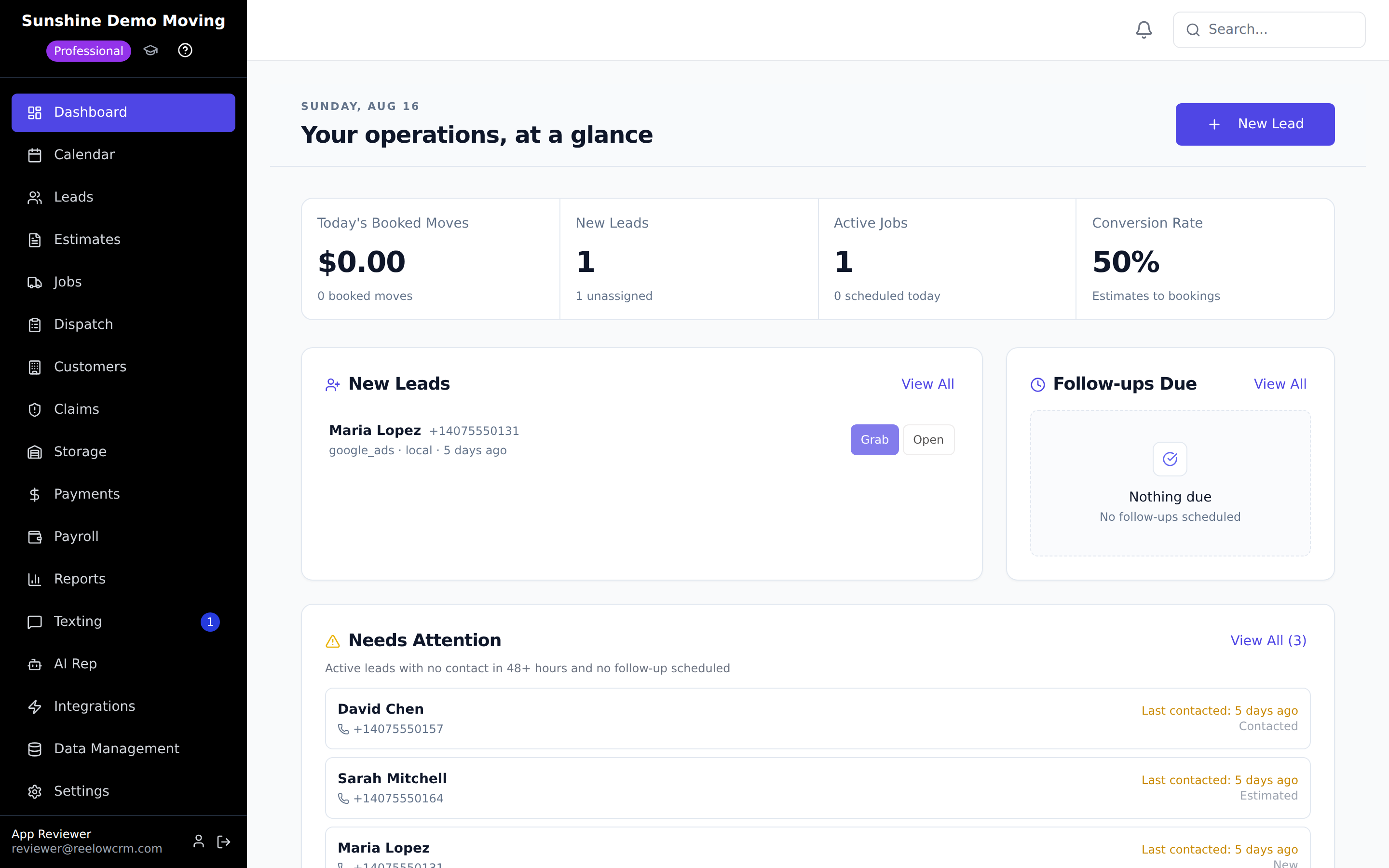
The sidebar
The sidebar lists every area your role can access. Owners and admins see the full list; what a consultant, dispatcher, or mover sees is trimmed to their job (see the role notes below). At the bottom of the sidebar you'll find your plan badge, a Guided tour button, Support, your profile settings, and Sign Out.
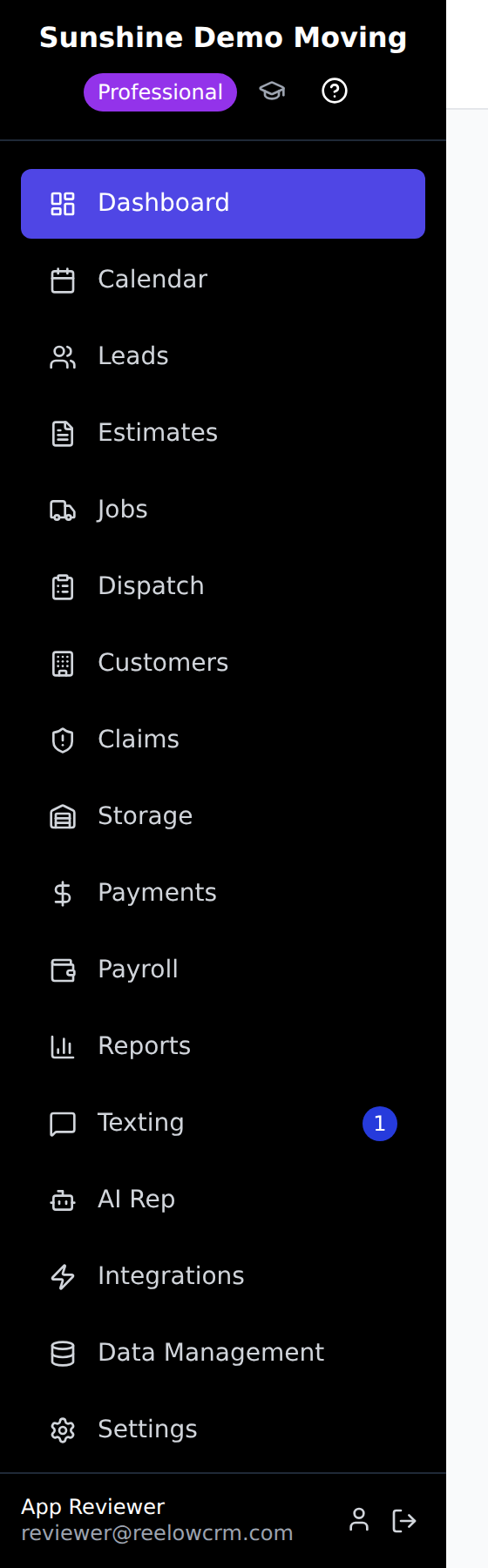
What each area does
- Dashboard (/) — daily overview and quick stats.
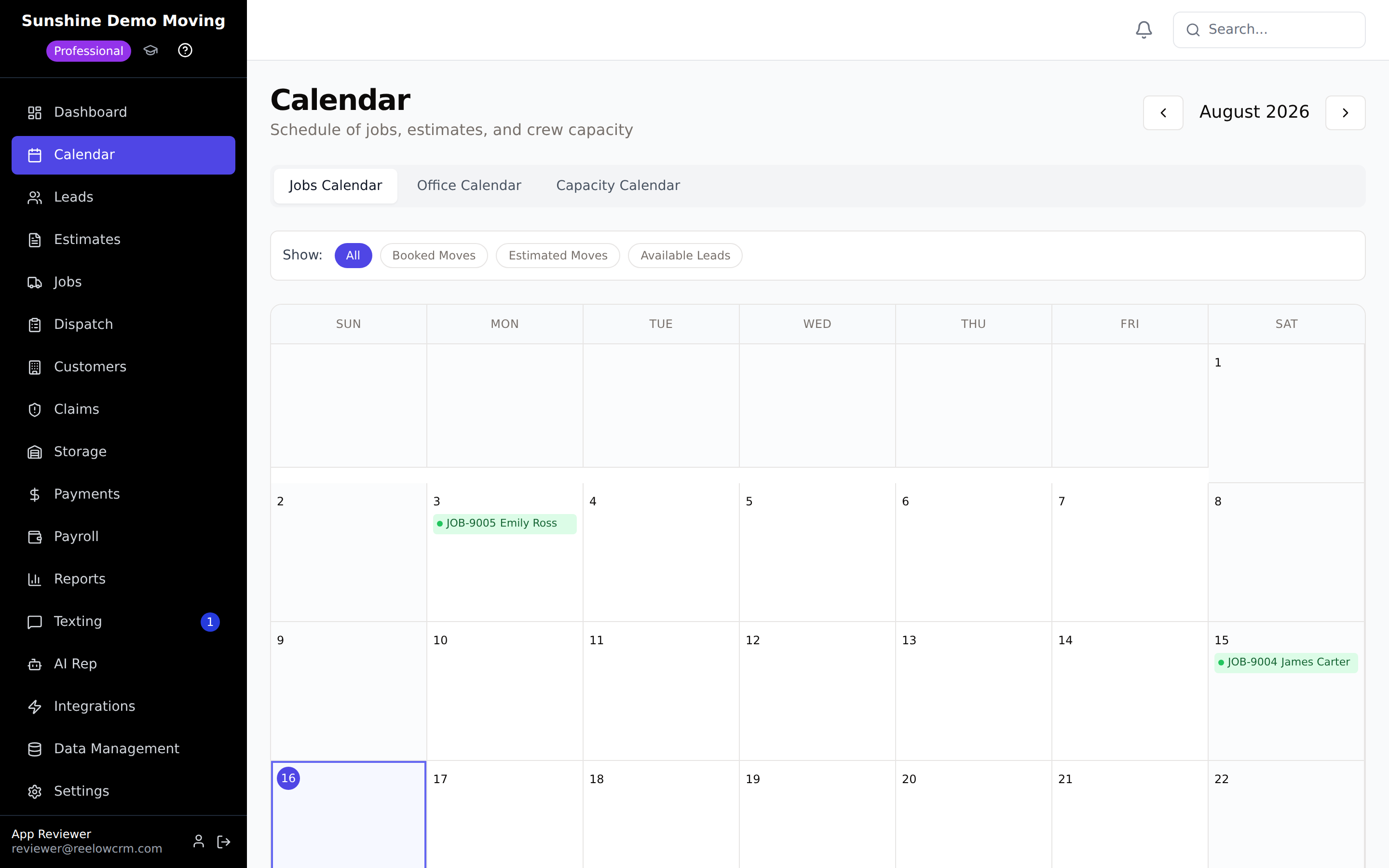
- Calendar — scheduled moves in a calendar view; check a day's load before booking.
- Leads — the heart of the CRM. Every inquiry with its move details, inventory, estimates, payments, and full communication history. Open any lead to work it.
- Estimates — every quote you've created and its status.
- Jobs — booked moves. Open a job to manage its schedule, crew, dispatch notes, and final bill.
- Dispatch — the day-of view: assign movers and trucks, and manage multiple moves per day.
- Customers — people you've moved before; useful for repeat business.
- Claims — damage claims, with documentation uploads and settlement tracking.
- Storage — storage customers, units, and recurring storage billing.
- Payments — deposits, invoices, balances, and payment history.
- Payroll — crew hours, pay periods, and commissions.
- My Hours — each employee's own clocked time.
- Reports — company performance: sales, revenue, and activity.
- Texting — two-way SMS inbox with customers (Professional plan; visible but locked on Starter).
- AI Rep — configure the AI Sales Rep, listen to call recordings, and review AI-booked moves (locked on plans without it).
- Integrations — connect lead sources so new leads flow straight into Reelow.
- Data Management — bulk import/export of your data.
- My Schedule — a mover's view of their assigned jobs.
- Settings — company profile, pricing, payments, communications, staff, and more.
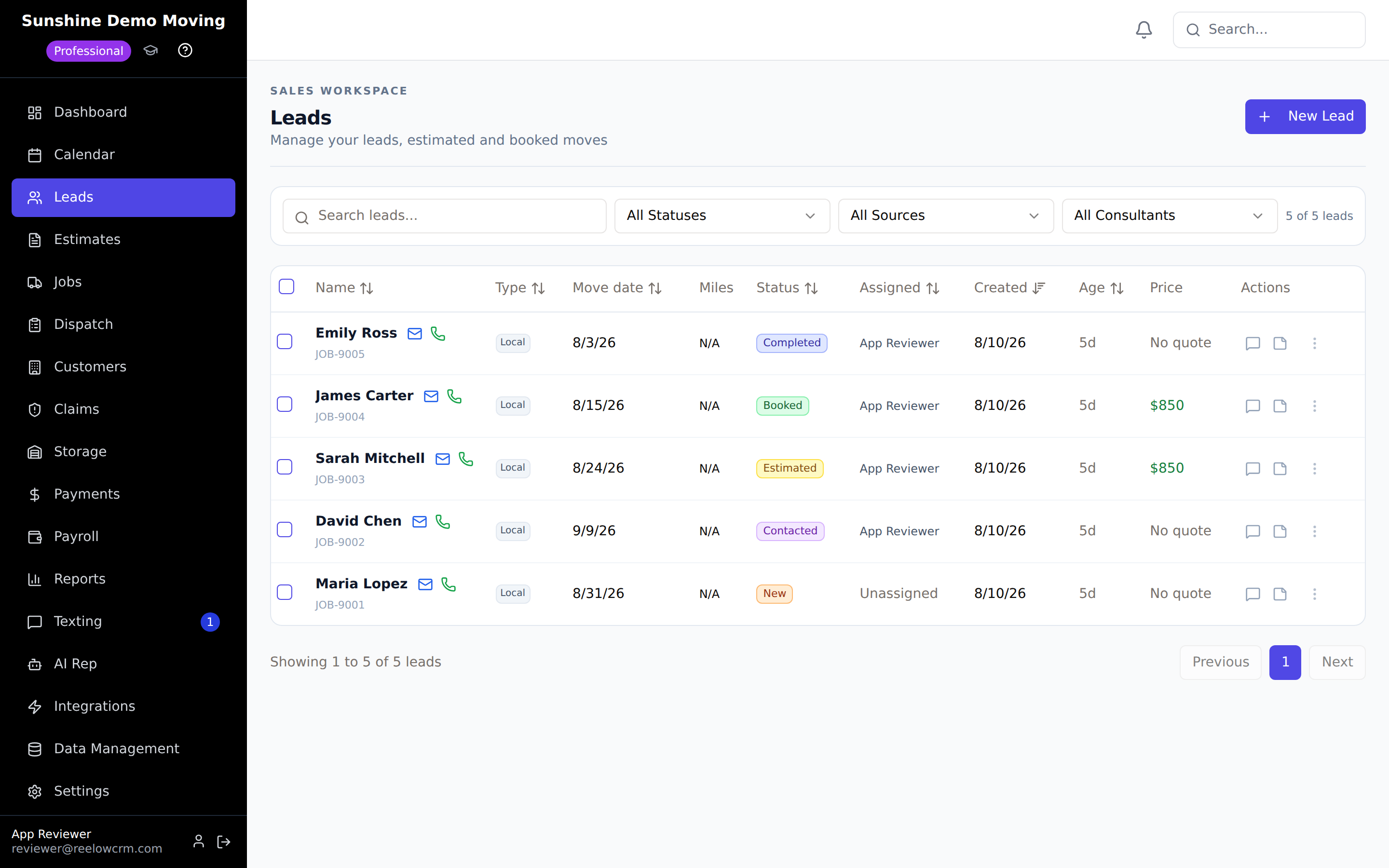
The Leads screen
You will spend most of your office time in Leads. The list shows every lead with its status; clicking a lead opens its full profile — contact info, move details, inventory, estimates, payments, and every text, email, and call on one timeline.
The Calendar
What different roles see
- Owner / Admin / Crew Leader / Accounting — the full sidebar shown above.
- Sales consultant — Dashboard, Calendar, Leads, Estimates, Jobs, Customers, Claims, Storage, Texting, and My Hours.
- Dispatcher — Dashboard, Calendar, Dispatch, Jobs, Customers, Claims, Storage, Texting, and My Hours.
- Mover — My Schedule, Calendar, Storage, and My Hours. Movers signing in are taken straight to My Schedule.
Tip: Lost? Click Guided tour at the bottom of the sidebar to replay the interactive walkthrough, or start typing in the search on the Leads screen to jump to a customer.
Was this article helpful? Let us know from this page in the app, or contact support if you're stuck.
Frequently asked questions
Why don't I see Texting or AI Rep in my sidebar?
Texting and the AI Sales Rep are Professional-plan features. On other plans they appear locked, and some roles (like movers) don't see them at all.
Why did I land on My Schedule instead of the Dashboard?
Team members with the mover role are taken to My Schedule, which shows their assigned jobs. Office roles land on the Dashboard.
Can I use Reelow on my phone?
Yes — the web app is responsive, and the Reelow mobile app gives crews their schedule, time tracking, and job details in the field.
Where do I change my own name, email, or password?
Click your profile at the bottom of the sidebar to open profile settings. Company-wide settings live under Settings.
Related articles
Previous: Setting Up Your Reelow Account · Next: Understanding the Reelow CRM Workflow
Still need help?
Contact the Reelow team, or call our 24/7 AI assistant at (737) 218-1003.